API sync to ticketing system
Jump to a specific section by clicking a link
Overview | Samples | Variables | Alert Functionality | Use Cases | PrintReleaf Integration | Best Practices & Tips | Related Alerts
NOTE: Due to popularity, there is currently a waitlist to get this implemented.
You need to subscribe in order to be added to the list.
* * *
Overview
Overview
This process ID136 will give you access to the Juice API for e-automate. Once set up, you're able to use the API for things like allowing your larger customers to build integrations to sync their ticketing and ordering systems with your e-automate. You configure the connection and issue API keys from ID136's own Settings and Key Management pages, then publish a self-documenting page to your own customer. This will allow service calls and sales orders to sync between both systems, the call or order can be entered in either system and will update as it is worked. You can also use the API to allow 3rd parties to build bespoke integrations with their systems, such as PrintReleaf's sustainability integration.
Important: ID136 is an API — a secure doorway to your e-automate data — not a finished integration. It makes the information available and accepts updates coming back, but it does not, on its own, connect to any CRM, ticketing system, or help desk. You (or your customer or 3rd party) build that connection using these endpoints; the use cases below show what becomes possible once you do.
To use this API to build your own integrations, add the API details to a test database to start. Clients testing this say it takes less than a day to build the integration. Our first client's customer went live 5 days after starting testing, but note that the client's customer had the in-house skills needed to build up the integration.
See a sample of API endpoints here. We are expanding this, so tell us what is missing.
Run Schedule:
Type of Output: Data Push
* * *
Sample
Sample
See a sample here.
* * *
Variables
Variables
Most of ID136's configuration is now handled inside the process's own Settings and Key Management pages, where you issue API keys and set operational defaults. Custom properties are no longer used. Only a few variables remain on the ID136 subscription itself:
Variable W: Default technician number
Variable X: Call type to be used for calls created by the API
Variable Y: Name of Note Type in e-automate that the API will use to add notes to
Variable 11: Use PO Number as reference for CallID
Variable 12: Default call priority
* * *
Alert Functionality
Alert Functionality
This process will allow your larger customers to sync their ticketing and ordering systems with your e-automate. You configure the connection and issue API keys from ID136's own Settings and Key Management pages, then publish a self-documenting page to your customer. This will allow service calls and sales orders to sync between both systems — the call or order can be entered in either system and will update as it is worked.
The process exposes the e-automate functions needed for ticketing and ordering integrations. For service calls: Create Call, List Open Calls, List Recently Changed Calls, Get a Specific Call (by Call ID or Call Number), Add Notes to a Call, and Cancel a Call. For sales orders: Create Order, List Open Orders, List Recently Changed Orders, and Get a Specific Order (by PO Number, Order ID, or Order Number). It also exposes read endpoints for customers, equipment, invoices, meter readings, contracts, leases, and inventory items, plus the lookup lists these integrations need (call types, problem/repair/cancel codes, priorities, note types, order types and statuses, ship methods, terms, price levels, and more). It does not implement any integration into any specific ticketing system — it only exposes the needed endpoints as a REST API. See a sample here.
Beyond call and order sync, the API exposes back-office write-backs used by more advanced integrations: record a customer payment and post it to the general ledger (AR), post cashbook receipts and deposits, create AP vouchers and AP invoices, add meter readings, and create customers, contacts, and inventory items. The AR payment and cashbook endpoints default to validate-only (a dry run) and are gated behind per-subscription feature settings, so they stay off until you deliberately enable them.
Several CEO Juice processes build on this same API, each enabled by its own active subscription — for example ID285 (Konica Minolta service sync), ID993 (Xerox service sync), ID228 (Kyocera service sync), ID634 (Sales Order import), and ID455 (AP voucher entry). ID136 is the shared foundation those processes ride on.
Please note, this process also works for ECi Hosted clients.
Add the API details to a test DB to start. Clients testing this say it takes less than a day to build the integration. Our first client's customer went live 5 days after starting testing. Note that the client's customer had the in-house skills needed.
Server Set Up
Create a new site in IIS.
Have the binding set to clientapi.yourdealername.com (or change that to whatever you like, it just needs to match the DNS entry).
You will need to make the DNS entries for it. You may also need to adjust the firewall, etc.
Add a second binding for https:// with the same URL and select an SSL cert (don't risk bringing your main site down by double-using a single-use cert). Have the site set to refuse non-https requests, for security purposes.
NOTE: Self-signed certificates are NOT supported. Ensure you have an SSL certificate purchased before set up.
Install the ASP.NET Core hosting bundle on the web server: Download ASP.NET Core 8.0 Runtime — Windows Hosting Bundle Installer (microsoft.com)
* * *
Use Cases
Use Cases
The scenarios below are examples of what can be built on top of ID136. In every case the API supplies the data and receives any updates; the actual connection to the other system is built by you, your customer, or a third party — ID136 itself performs no integration.
Internal CRM sync. Keep your CRM aligned with e-automate by syncing Customers, Contacts, Equipment, Contracts, and Leases both ways, so sales and account teams always work from current data — for example an internal integration between e-automate and Salesforce, HubSpot, or Dynamics.
Ticketing / PSA sync. Sync Service Calls and Contracts between e-automate and a ticketing or PSA platform such as ConnectWise or ServiceNow. A technician can open, note, or close a call in either system and the other side stays up to date.
External customer help desk. Let a large customer's own help desk (ServiceNow, etc.) create and track Service Calls against their Equipment, so their end users log issues from their own portal without anyone re-keying the call into e-automate.
Back-office automation. Push customer payments, cashbook receipts and deposits, AP vouchers and invoices, and meter readings into e-automate from external billing or accounting workflows — with the money-posting endpoints running in validate-only mode until you enable them.
Sustainability reporting. Offer your customers certified reforestation and carbon offsets for the paper they use, through PrintReleaf's ready-made integration. See Sustainability with PrintReleaf below.
Foundation for other Juice processes. ID136 is the shared API that other CEO Juice processes build on, including ID285 (Konica Minolta service sync), ID993 (Xerox service sync), ID228 (Kyocera service sync), ID634 (Sales Order import), and ID455 (AP voucher entry).
* * *
Sustainability with PrintReleaf
Sustainability with PrintReleaf
PrintReleaf is a sustainability platform that offsets the paper your customers use. Each month, it matches every customer's paper consumption with verified reforestation and carbon offset programs and issues them Certificates of Reforestation and Carbon Offset Certificates. PrintReleaf built the integration on ID136's endpoints, so there's no development work on your end. It's an easy way to offer your customers a certified sustainability program.
Why connect through e-automate? Because PrintReleaf works from your e-automate billing data, devices that were never on a DCA are still included, the pages it offsets match your customers' invoices, and switching DCAs or adding customers from an acquisition won't mean reworking anything in PrintReleaf. For each customer, you can choose actual or billable usage (including contract minimums).
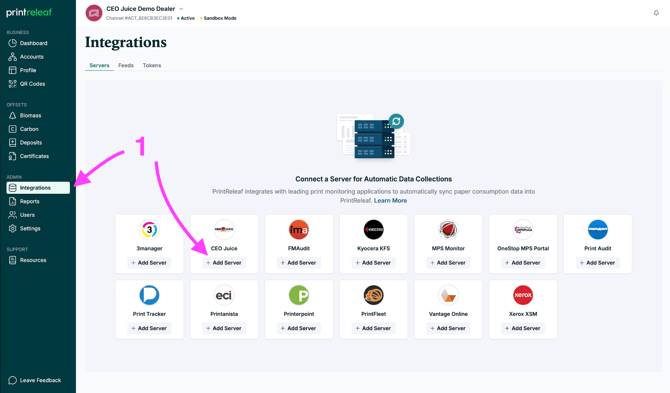
Getting started. Contact PrintReleaf to set up your account, and subscribe to ID136. As part of your ID136 setup, we'll help you get the API URL and API key PrintReleaf needs, and support you through the one-time server setup if ID136 isn't already running. Once that's done, add your server under Integrations in PrintReleaf, then connect your customers yourself or email support@printreleaf.com and they'll set them up for you.
What PrintReleaf can see. PrintReleaf's access is read-only. It receives each customer's page counts (black and white, color, duplex, and total, calculated from meter readings), contract minimums, and bill dates, and never writes anything back to e-automate. In line with the Security tips below, it should have its own API key, limited to the PrintReleaf endpoints.
What to expect. PrintReleaf collects data from e-automate every night. Actual usage starts appearing in a customer's feed within 24 to 48 hours, and billable usage shortly after their invoices are issued. If a feed stops receiving data, PrintReleaf flags it and fills the gap automatically once it recovers.
Click here to read more about the integration on the PrintReleaf website.
Click here to read the PrintReleaf guide on integration setup - it's super simple to do!
* * *
Best Practices & Tips
Best Practices & Tips
Security
Enable only the features you need. In ID136's Settings, turn on only the endpoints and capabilities an integration actually uses. Every feature left on is one more potential target — the smaller the surface, the smaller the risk.
Give each API key the least access it needs. Grant an individual key only the specific rights and customer scope required for its job. Avoid broad or all-access rights granted "just in case."
Use a separate key for each integration project. Never share one key across multiple integrations or customers. Separate keys let you track usage per project and revoke or rotate one without breaking the others if it is ever compromised.
Prefer OIDC over API keys. Simple API key authentication is supported, but OIDC is the more secure option — use it wherever the integrating system can support it.
Plan Ahead
Start the ID136 installation well in advance. Setup often requires people beyond your usual CEO Juice contacts — your internal or outsourced IT department for router/firewall configuration and DNS, and whoever procures your SSL certificate. Lining these resources up early keeps your go-live on schedule.
* * *
Related Alerts
Related Alerts
ID664 - ServiceNow Sync
ID285 - Konica Minolta Service Sync
ID993 - Xerox Service Sync
ID228 - Kyocera Service Sync
ID634 - Sales Order Import
ID455 - AP Voucher Entry
* * *
0 Comments