Alert for service calls that are scheduled or on hold, but the call response time is not on hold.
Jump to a specific section by clicking a link
Overview | Samples | Variables | Alert Functionality | Best Practices & Tips | Related Alerts
Overview
Overview
Many service calls get put on hold or scheduled for a later date to meet your customers' requirements. To ensure the tech response time isn't incorrectly affected, this alert will notify you of calls that are either (1) scheduled but not put on hold or (2) calls that are put on hold but the response time is still ticking or (3) calls showing an estimated start time greater than the due time.
The logic looks for three conditions on Correct Maintenance and Preventive Maintenance Service Calls:
- Scheduled Status.
- On hold with a code that doesn’t stop the clock.
- Not Scheduled or On Hold, but the estimated start date is set beyond a standard response time.
Run Schedule: Every 2 hours
Type of Output: Email
* * *
Sample
Sample
* * *
Variables
Variables
Variable W: Branch Filter - List the branch numbers for the alert to trigger on, separated by commas. Leave blank to trigger on all branches.
* * *
Alert Functionality
Alert Functionality
For the alert to trigger on a service call, the call type used must be either Corrective Maintenance or Preventive Maintenance:
There are three reasons for this alert to trigger:
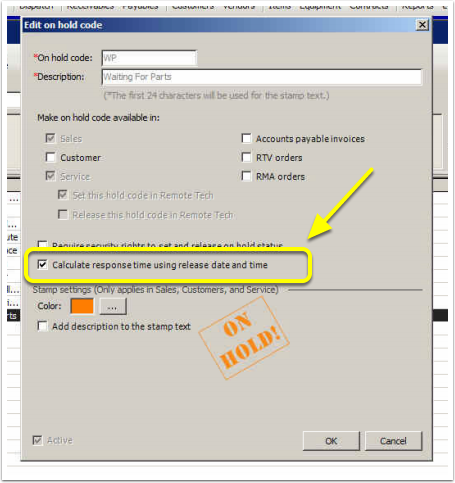
1. Hold Code does not stop Response Time clock - either the Hold Code is incorrect, or the Hold Code needs to be edited to stop the clock. This is done via Tools - Lists and Codes - On hold codes:
2. Scheduled Status Used - check to make sure the call is scheduled correctly:
To schedule a Service Call, right-click on the call in the Dispatch Console and select 'schedule' to be taken to this screen:
**Be sure to put this call on hold as well (recommend using Hold Code of 'Sched' or something similar). If the call is scheduled and not showing as on hold, it will trigger the alert.
If you are on a version of e-automate higher than 20.1 and are using the ScheduleResponseReset on-hold code, you will check the 'Reset response start time' option, and then you will need to manually place the call on hold with the ScheduleResponseReset code.
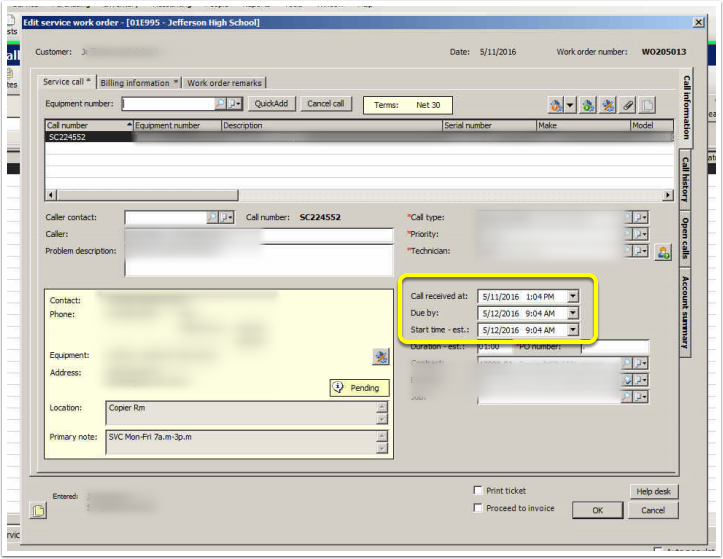
3. Call not properly scheduled - Indicates the estimated start date is more than 19 hours away; you should consider putting the call On Hold to stop the clock.
(The rationale was a call entered in e-automate at 3 PM, and standard response time is 4 hours, then the Estimated Start Date/Time is set for 10 AM the next day. This alert considers all hours in the day, not just business hours, so anything in excess of 19 hours should be well beyond standard 4-hour response time.)
* * *
Best Practices & Tips
Best Practices & Tips
1. See documentation here on best practices for response time and on-hold codes in e-automate.
2. See documentation here on how to reschedule a call in e-automate.
3. E-automate now has an option for logging a service call that will become active at a future date. (Versions prior to 20.1 do not include this option.)
To use this process, you'll need to create a system-level on-hold code named 'ScheduledResponseReset':
Once this code has been created, when you schedule a service call, the Schedule Service Call screen's Technician assignments for all selected calls will include a Reset response start time check box.
If using this new on-hold code, be sure to manually update the call to this hold code after scheduling to avoid false triggers of ID929.
* * *
Related Alerts
Related Alerts
ID928 - Scheduled Calls with Appointments
* * *
0 Comments